Volume cloning on Creodias Managed Kubernetes
Kubernetes can create a new persistent volume by cloning the contents of an existing PersistentVolumeClaim. Volume cloning is useful when you want a second volume that starts with the same contents as an existing one. Typical examples include:
creating a test copy of application data,
preparing a duplicate dataset for debugging,
validating backup and restore procedures,
creating a second environment from a known storage state,
data migration,
application bootstrapping without copying files manually inside the pod.
Volume cloning creates a separate volume with its own lifecycle. After the clone is created, the original and the cloned volumes are independent.
What We Are Going To Cover
In this article, you will:
create a source PersistentVolumeClaim,
mount it in a pod and write test data,
delete the writer pod to release the source volume,
create a second PersistentVolumeClaim cloned from the first one,
mount the cloned volume in a second pod,
verify that the cloned volume contains the original data.
Prerequisites
1. Hosting account
You need:
your Creodias account
access to the Creodias Managed Kubernetes dashboard at https://managed-kubernetes.creodias.eu
A running Managed Kubernetes cluster
You need an existing Creodias Managed Kubernetes cluster and a working kubectl configuration for that cluster. See How to create a Kubernetes cluster using the Creodias Managed Kubernetes launcher GUI.
No. 3 Supported Creodias Managed Kubernetes region
Volume cloning availability and storage classes depend on the region and cloud where the cluster is running. Use a cluster in a supported Creodias Managed Kubernetes region, and always check the available storage classes before creating the PVCs.
Available Creodias Managed Kubernetes regions for Creodias:
FRA1-3
LCJ1-1
WAW4-1
At least one schedulable worker node
Make sure that your cluster has at least one worker node available for running application pods.
If your cluster currently contains only a control-plane node, add a worker node or worker node pool before proceeding. See Add node pools to Creodias Managed Kubernetes cluster using the launcher GUI.
To check the available nodes, run:
kubectl get nodes -o wide
At least one worker node should be in the Ready state before you continue. The output may look like this:

Basic knowledge of Kubernetes storage
It is helpful to understand the difference between:
PersistentVolume (PV), which represents storage available to the cluster,
PersistentVolumeClaim (PVC), which is a request for storage made by a workload,
a cloned PVC, which is a new claim created from the contents of an existing claim.
Available Cinder-backed storage classes
To see which storage classes are available in your current cluster and region, run:
kubectl get sc
The result may look like this:

Look for storage classes whose provisioner is cinder.csi.openstack.org. These are Cinder-backed storage classes and are suitable for the ReadWriteOnce PVCs used in this article.
The exact storage class names may differ between clouds and regions. Always use the output of kubectl get sc as the source of truth.
In the examples below, replace <cinder-storage-class-name> with a valid Cinder-backed storage class from your cluster.
Create the source PersistentVolumeClaim
In this step, you create the original PVC that will later be used as the cloning source.
Save the following file as clone-source-pvc.yaml:
apiVersion: v1
kind: PersistentVolumeClaim
metadata:
  name: clone-source-pvc
spec:
  storageClassName: <cinder-storage-class-name>
  accessModes:
    - ReadWriteOnce
  resources:
    requests:
      storage: 5Gi
Replace <cinder-storage-class-name> with a Cinder-backed storage class available in your cluster.
For example, if kubectl get sc shows a Cinder-backed storage class named general-performance, use:
storageClassName: general-performance
This manifest requests:
a volume of size 5 GiB,
storage provisioned through the selected Cinder-backed StorageClass,
ReadWriteOnce access mode.
Apply the manifest:
kubectl apply -f clone-source-pvc.yaml
Wait until the source PVC is Bound:
kubectl wait --for=jsonpath='{.status.phase}'=Bound pvc/clone-source-pvc --timeout=180s
kubectl get pvc clone-source-pvc
Do not continue until the PVC is Bound. If the PVC remains Pending, the writer pod may not be scheduled and may report that it has no host assigned.
Verify that Kubernetes provisioned the source storage
To verify that the source claim was created successfully, run:
kubectl get pvc clone-source-pvc
kubectl get pv
A successful PersistentVolumeClaim shows status Bound.
For more details, inspect the claim and then describe the corresponding PersistentVolume shown in the output:
kubectl describe pvc clone-source-pvc
kubectl describe pv <pv-name>
The output should show that the claim is bound to a PersistentVolume provisioned by cinder.csi.openstack.org.
Write data to the source volume
Now that the source PVC exists and is Bound, mount it in a pod and write test data to it.
Save the following file as clone-writer-pod.yaml:
apiVersion: v1
kind: Pod
metadata:
  name: clone-writer
spec:
  containers:
  - name: app
    image: busybox
    command: ["sh", "-c", "echo hello-from-source > /data/file.txt; sleep 3600"]
    volumeMounts:
    - mountPath: /data
      name: data
  volumes:
  - name: data
    persistentVolumeClaim:
      claimName: clone-source-pvc
Apply the manifest and wait for the pod to become ready:
kubectl apply -f clone-writer-pod.yaml
kubectl wait --for=condition=Ready pod/clone-writer --timeout=120s
This creates a pod named clone-writer, mounts the source volume at /data, and writes the file /data/file.txt with the contents:
hello-from-source
To verify that the source file was written successfully, run:
kubectl exec clone-writer -- cat /data/file.txt
The result should be:
hello-from-source
Delete the writer pod
In a ReadWriteOnce workflow, the source volume is intended for use by one node at a time. Therefore, before cloning the PVC, delete the writer pod so that the source volume is no longer mounted by the pod.
Run:
kubectl delete pod clone-writer
The result is:
pod "clone-writer" deleted
Before continuing, verify that the source PVC is still Bound:
kubectl get pvc clone-source-pvc
Create the cloned PersistentVolumeClaim
Now create a second PVC that clones the contents of the first one.
Save the following file as clone-restored-pvc.yaml:
apiVersion: v1
kind: PersistentVolumeClaim
metadata:
  name: clone-restored-pvc
spec:
  dataSource:
    name: clone-source-pvc
    kind: PersistentVolumeClaim
  storageClassName: <cinder-storage-class-name>
  accessModes:
    - ReadWriteOnce
  resources:
    requests:
      storage: 5Gi
The key part of this manifest is the dataSource section. It tells Kubernetes to create clone-restored-pvc by cloning the contents of clone-source-pvc.
Use the same valid Cinder-backed storage class as in clone-source-pvc.yaml.
For example, if kubectl get sc shows a Cinder-backed storage class named general-performance, use:
storageClassName: general-performance
Apply the manifest:
kubectl apply -f clone-restored-pvc.yaml
Wait until the cloned PVC is Bound:
kubectl wait --for=jsonpath='{.status.phase}'=Bound pvc/clone-restored-pvc --timeout=180s
kubectl get pvc
Kubernetes creates the new claim and provisions a second PersistentVolume based on the contents of the original PVC.
Verify that the cloned storage was created
To verify that the cloned claim was created successfully, run:
kubectl get pvc
kubectl get pv
You should now see both clone-source-pvc and clone-restored-pvc with status Bound.
For more details, inspect the cloned claim:
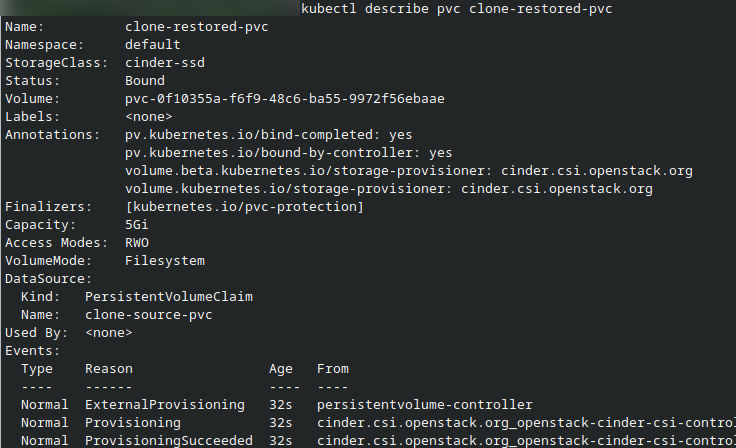
kubectl describe pvc clone-restored-pvc
The output should confirm that Kubernetes created a new PersistentVolumeClaim using clone-source-pvc as the source.
Mount the cloned volume in a second pod
Now that the cloned PVC exists and is Bound, mount it in a second pod and read the copied file.
Save the following file as clone-reader-pod.yaml:
apiVersion: v1
kind: Pod
metadata:
  name: clone-reader
spec:
  containers:
  - name: app
    image: busybox
    command: ["sh", "-c", "cat /data/file.txt; sleep 3600"]
    volumeMounts:
    - mountPath: /data
      name: data
  volumes:
  - name: data
    persistentVolumeClaim:
      claimName: clone-restored-pvc
Apply the manifest and wait for the pod to become ready:
kubectl apply -f clone-reader-pod.yaml
kubectl wait --for=condition=Ready pod/clone-reader --timeout=120s
This creates a pod named clone-reader, mounts the cloned volume at /data, and prints the contents of /data/file.txt to the pod log.
Verify the cloned data
To verify that the cloned volume contains the original file, check the logs of the clone-reader pod:
kubectl logs clone-reader
If the pod starts successfully, you should see:
hello-from-source
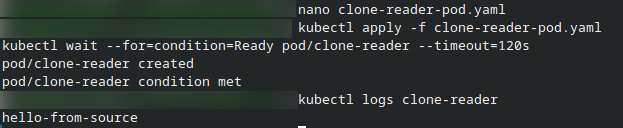
This confirms that:
the source PVC was created successfully,
the source pod wrote data to the source volume,
the second PVC was cloned from the first one,
the cloned volume contains the same data as the source at the time of cloning.
The cloned PVC is independent
Volume cloning is useful for copying the state of a volume, but it is not the same as shared access.
This means:
the cloned PVC is a separate volume, not a live mirror of the original,
changes made later to the original volume do not automatically appear in the clone,
this workflow is suited to copying block storage state, not to simultaneous multi-pod shared filesystem access.
If your application needs the same filesystem mounted by multiple pods at the same time, use a shared file storage solution such as SFS instead of block-storage cloning.
What to do next
You have now cloned a PersistentVolumeClaim and verified, through a reader pod, that the cloned volume contains the original data from the source claim.
As a next step, you can compare this approach with:
Cinder-backed ReadWriteOnce storage for standard single-volume persistence
Create and use volume snapshots on Creodias Managed Kubernetes
/kubernetes/Use-SFS-shared-file-storage-with-pods-in-ReadWriteMany-mode-on-Creodias-Managed-Kubernetes
Clean up the resources created in this article
If you no longer need the test resources created in this article, delete the restored pod and both PersistentVolumeClaims.
Run:
kubectl delete pod clone-reader clone-writer --ignore-not-found
kubectl delete pvc clone-restored-pvc clone-source-pvc --ignore-not-found
In the normal workflow, the writer pod was already deleted earlier in the procedure before the clone was created. The command above includes it as well so that the cleanup works even if you recreated it manually during testing.
The PersistentVolumes used in this workflow were created dynamically from the PersistentVolumeClaims. Because the associated storage class uses the Delete reclaim policy, deleting the PVCs also triggers removal of the dynamically provisioned volumes created for this test.
To verify the cleanup status, run:
kubectl get pod
kubectl get pvc
kubectl get pv
The pods clone-reader and clone-writer, as well as the claims clone-source-pvc and clone-restored-pvc, should disappear immediately.
The corresponding dynamically created PersistentVolumes may remain temporarily in the Released state while backend cleanup is still in progress. After the cleanup finishes, they should also disappear from the output.